sea-shell 6.4.0
6.3 The bar update — every widget styled on its own, a bar that stops overflowing, a theme that follows your wallpaper

A desktop shell.
Not a status bar.

The bar, dock, launcher, control center, notification daemon, screen recorder and wallpaper picker — one process, built entirely in Quickshell for Hyprland. And the whole palette follows your wallpaper.

The desktop
The sea-shell desktop: a translucent bar at the top, a wallpaper, and the dock at the bottom

The desktop, running the default configuration.

11
surfaces in one process
4
tools it replaces
40+
read-only health checks
16
distribution marks

Adaptive colour

Your wallpaper picks
the palette.

Turn on match colours and every surface re-tints from the image behind it — the bar, the dock, the control center, the terminal, the lock screen, even the window borders. One image change, and the whole desktop follows.

Engine · matugen
Scheme · neutral
Terminal palette · WCAG floor
Persisted · matugen.lua

A real recording, not a mock-up. One wallpaper change — the bar, the dock and every accent follow it.

The desktop on a green pixel-art wallpaper, recoloured to match
#d6c4aa
The desktop on a deep blue underwater wallpaper, recoloured to match
#bdc8d3
The desktop on a warm garden wallpaper, recoloured to match
#e0bfb9
The desktop on a dusk-lit voxel wallpaper, recoloured to match
#c1c6d6
The desktop on a pale anime wallpaper, recoloured to match
#dbc0c8

One build. Five wallpapers. Nothing changed but the image.

Wallpaper

The picker is
the wallpaper.

The old one put a card over a dimmed desktop and drew every wallpaper as a 220px crop, so you chose by looking at twelve postage stamps and found out what you had picked afterwards. Here the focused wallpaper fills the screen at full size and the rail along the bottom is the only chrome. You are always looking at the thing you are choosing, at the size you will get it.

New in 6.3: motion is asked for, never automatic — a play key on the deck, or ctrl+p. Spinning a video decoder up and down for every wallpaper you arrow past costs far more than the answer is worth, and the first one in a process drags 642ms of ffmpeg initialisation behind it. That one change took the picker from 1178ms to 216ms to open.

Open · SUPER+SHIFT+W
Choose · ← → or type
Formats · images + video
Folder · yours, recursive

Committing is a cartridge going into a console. The frame never changes size — it lifts out of the rail, hangs, and drops into the slot. The shutter parts ahead of it and snaps shut behind.

The wallpaper picker: one wallpaper filling the screen, a rail of frames along the bottom, and a plate reading the file name, resolution, size and duration
The plate reads out. Index, file name, pixel dimensions, size on disk, duration, and whether it is playing — under the rail, where the deck would be.
The picker with a search query typed, the rail filtered to two matches and a counter showing the hit count
Type to search. The window is built out of the deck's own parts — a raised legend, a sunken well, a raised counter — rather than a text field borrowed from somewhere else.

Your folder, not ours

~/Pictures/wallpapers was hardcoded in three places and by omission in a fourth. It is a setting now, with a folder browser behind it, and the walk is recursive — so a wallpaper folder with any organisation in it is no longer indexed as empty.

Each subfolder becomes a collection you can filter by.

Video wallpapers, without the memory

A moving wallpaper is freed while a fullscreen window covers it — not paused. A paused decoder keeps its surface and its VRAM for as long as it lives, and the thing covering your wallpaper is usually a game that wanted exactly that memory.

A still of the same frame goes up before the decoder is killed, so the swap has no black frame in either direction.

A day and a night one

Pin two and they swap on the same schedule auto dark mode already uses — not a second pair of times to keep in step.

There is a shuffle too, and it deals from a bag rather than rolling a die, so you see every wallpaper once before you see any of them twice.

Light & Dark

Two modes.
Both designed.

Not a dark theme with an inverted afterthought. Every neutral is re-picked so contrast holds, and the accent is re-derived rather than reused. The switch at the top of this page changes the page and every screenshot on it — so you are looking at the real thing, in both modes.

New in 6.3: which mode you are in can be decided three ways — by you, by the clock on a schedule following sunrise and sunset, or by the wallpaper. The last reads the mean luminance of the image you are looking at, with a dead zone in the middle: under 0.42 goes dark, over 0.60 goes light, and a wallpaper landing between them changes nothing. That range was measured against a real folder rather than guessed, because the mid-forties is where an image is genuinely neither, and a naive midpoint flips your whole desktop over a wallpaper only slightly darker than the last one.

Toggling by hand hands control back to you. An override the next wallpaper silently undoes is not an override.

One keystroke. Every surface follows.

The dashboard: clock, system figures, sparklines, a process table and app usage
Dashboard SUPER+D
The launcher: a search field with mode chips above a filtered application list
Launcher SUPER+Space
The Bar tab: bar shape, workspace style, seven numbering schemes and sixteen distribution marks
Bar New
The System tab: kernel, compositor, hardware, memory and disk
Control center SUPER+S

The desktop

Everything, in one process.

The launcher opens with no spawn delay, because it is already running. The dock knows what the bar knows, because they are the same program.

The usual arrangement

process
waybar
process
rofi
process
mako
process
swaync

sea-shell

qs -c sea-shell · one process
bardocklauncher control centernotifications dashboardrecorder mission controlpower menu keybindswallpaper

Eleven surfaces, one QML runtime — so they share state instead of polling each other for it.

IPC · qs -c sea-shell ipc
Targets · 9
Config · JSON
Compositor rules · Lua

The dock. The icon under the pointer and its neighbours grow — slots keep their width, so the row never shifts under you.

The launcher. Typing filters as you go — then one prefix turns the same field into a calculator.

The desktop: a clock, a system read-out and a shortcut placed in the empty parts of an anime wallpaper, clear of the character

Placed around the picture, not on it. The wallpaper is measured first, so every widget sits in space the image actually has.

The system widget: a tracked SYSTEM label over a hairline, 14% cpu, three overlaid traces, and a row of readings
A read-out, not a card. Three traces on one axis; the row beneath is the key.
The bar showing LibreOffice's menu bar: File, Edit, View, Insert, Format, Styles, Table, Form, Tools, Window, Help
LibreOffice's own menu, in the bar. The workspace pills stand down for it.

The desktopNew

A clock, weather, now playing and a system read-out — plus shortcuts to any application — on the part of the screen this shell used to do nothing with. SUPER+SHIFT+A arranges them.

They are placed around what is in your wallpaper. Every desktop with widgets has the same failure: you choose a picture because you like what is in it, then cover that part with a clock. So the picture is measured. Dragging shows the busy areas; a widget dropped on the subject moves aside; hold shift to overrule it. Change the wallpaper and the desktop follows it.

They are read-outs rather than cards — a tracked label, a hairline, a figure — built from the same parts as the bar. On the clock, the accent segment of that hairline is the minute, filling as it passes.

The global menuNew

The focused window's own menu bar, in the bar, where the window title goes. Qt, GTK, KDE and LibreOffice hand over their whole menu tree, nested submenus included.

The usual plumbing for this cannot work on Wayland — it keys every menu by an X11 window id. Accessibility publishes the same menus addressed by process instead, and a process is something the compositor will tell you about.

It is invisible unless it has something to say. Most windows export no menu bar, and a global menu that answers those with an empty strip is worse than none — so the title simply comes back.

The barReworked

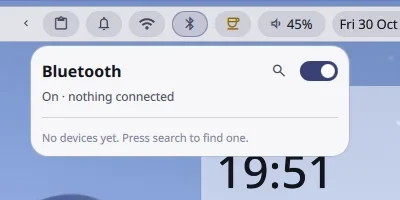
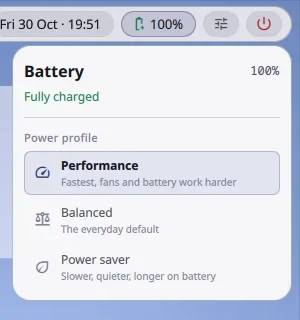
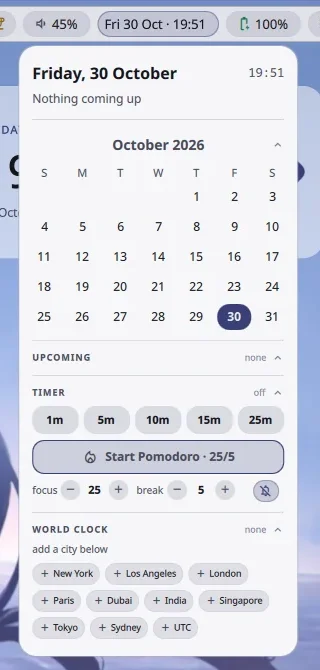
Workspaces, focused app, centred media, tray, and status pills for CPU, memory and GPU with temperatures and power draw, weather, network throughput, pending package updates, wi-fi and VPN, bluetooth, KDE Connect, volume, battery and a calendar.

Every pill can be switched off, dragged into a new order, and — new in 6.3 — given its own colour, contents and ground. The bar itself has a shape, a workspace style, a numbering scheme and a mark.

The dockNew

Pinned and running apps on any edge, on every monitor, with cursor magnification and running indicators.

Three visibility modes: always, auto-hide, or when free — visible right up until a window would overlap it.

New in 6.3: click a link and the icon of whatever opened it pulses, and the shell can take you there.

The launcher

Applications ranked by how often you actually open them — then commands, a calculator, file search, web search, clipboard history and system actions, each behind a single prefix key.

The bar's shape

One strip,
or two grounds.

The bar was one shape. It is two now — a single continuous strip, or the clusters as separate floating pills with the wallpaper showing between them.

The bar as one continuous strip across the top of the screen
one bar
The bar as separate floating pills, with the wallpaper visible between the left and right clusters
pills — the centre cluster is the media pill, which already has a ground of its own

Workspaces get their own shape and their own numbering: Arabic, Roman, Mandarin, letters, circled numerals, dice, or one dot each. Every scheme falls back to the plain number once it runs out of symbols, and a scheme nothing on the machine can draw is not offered at all.

Workspace indicators as chips, the active one stretched wide
grow · 1 2 3
Workspace indicators as identical pills with the active one filled, numbered in Roman numerals
pills · I II III
Workspace indicators as true circles with the active one stretched into a pill, numbered in Mandarin
circles · 一 二 三
Workspace indicators as identical dots, the active one filled
circles · dots

Circles are round at any roundness setting. Grow's corner radius follows the slider, which is why it stopped being a circle.

New in 6.3

Move it, hide it,
or change it.

You could reorder a pill and you could switch it off. You could not make one look different. Now each opens onto three choices — its colour, whether it shows an icon, a value or both, and whether it sits on a filled ground, an outline, or nothing at all. A widget you have touched carries a dot, and anything left at its default is never written to disk, so your config still says only what you decided.

Your colour choice steps aside while a pill is already using colour to say something. A widget that turns amber to warn you about an update is not overruled by a preference — at that moment the colour is carrying a fact, and the preference is not.

New in 6.3

A bar that admits
it ran out of room.

Turn on enough widgets and the right cluster used to keep growing until it was sitting against the media pill, and then underneath it. It measures the room it actually has now, and pushes the widgets furthest from the edge out of the row until the rest fits.

A mark takes their place, carrying the count. Clicking it opens Bar Widgets — because which ones you want is a decision, and the bar should not be making it quietly on your behalf.

New in 6.3

You can see
the scratchpad now.

SUPER+SHIFT+` sends a window to the scratchpad, and nothing on screen said so — which made it a way to lose a window until you remembered the other half of the binding. A mark in the left cluster now carries the count, fills in while the stash is pulled down, and exists only while it is holding something: stash the last window and it removes itself rather than sitting there reading zero.

It is deliberately not a workspace chip. The scratchpad is an overlay on the workspace you are already standing on, not a place you travel to, so the mark toggles it rather than going to it. Mission Control shows the same stash as a card, with the windows inside it — it answers "where are my windows", and those are the ones no other card can show you.

Control center

Twenty-one tabs.
One window.

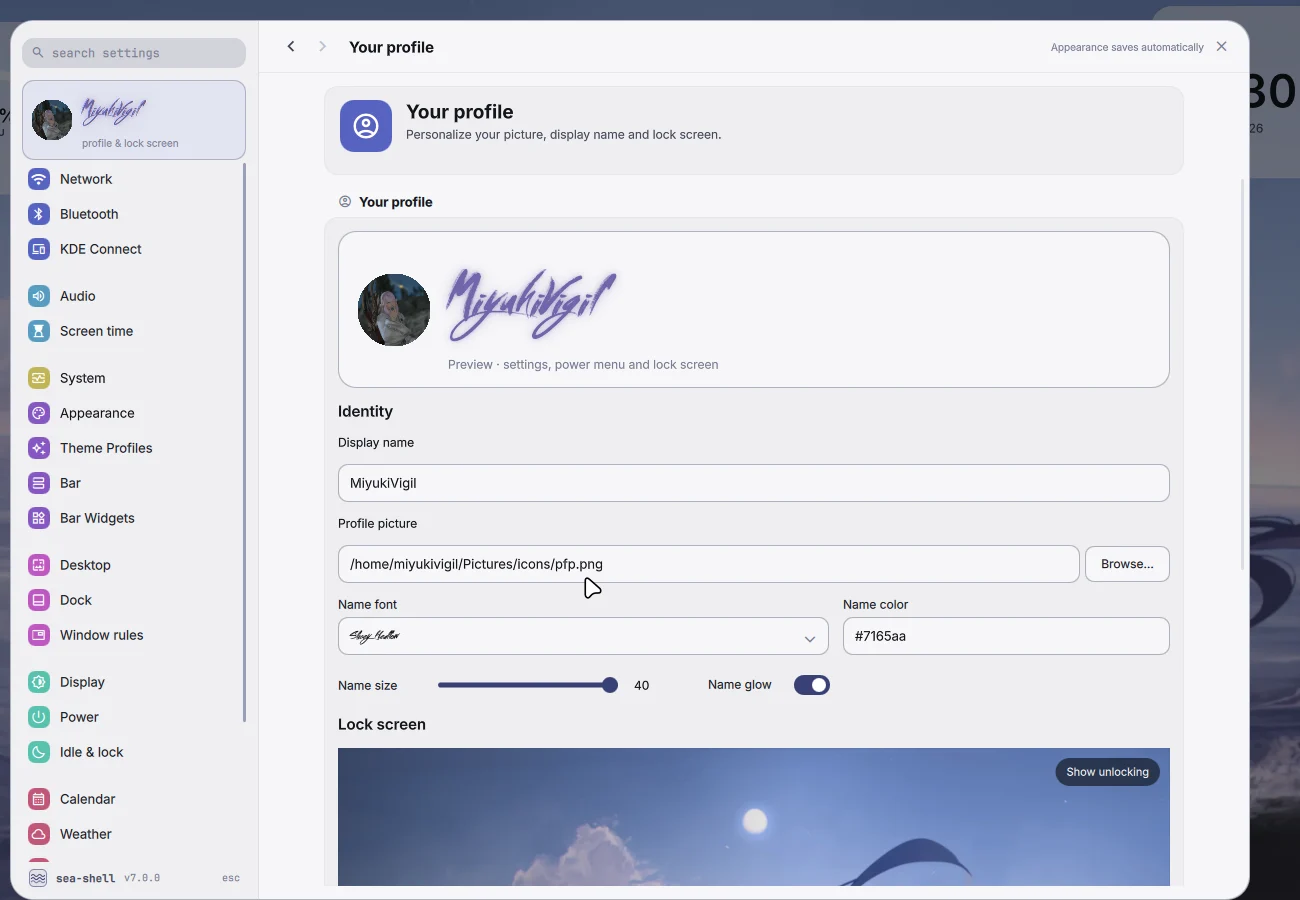
Settings written here go straight into Hyprland's own configuration where that is what they are. Window rules and touchpad gestures become real Lua, loaded after the shipped defaults so yours always win.

21

Tabs

Appearance, bar, widgets, dock, window rules, theme profiles, audio, display, network, bluetooth, KDE Connect, disks, weather, calendar, keybinds, input, screen time, idle and power.

4

New in 6.3

Appearance for each bar widget on its own, three ways to decide light or dark, a dock that can tell you where a link opened, and a scratchpad you can see.

0

Restarts

Everything applies live. Gesture and rule options were probed against the running compositor, so the interface cannot offer you something it will reject.

Moving through the tabs. Everything applies as you touch it.

The Disks tab: drives grouped with model and bus, partitions with usage bars
Disks. Real used and free space, mount and eject. An unmounted partition shows no bar — its usage isn't knowable without mounting it.
The Screen time tab, listing applications with time used today
Screen time. Focus time per app, paused while the session is idle, with optional daily limits.
The Dock tab, with edge, icon size and behaviour controls
Dock. Edge, size, visibility mode, magnification and labels.
The Window rules tab for creating per-application rules
Window rules. Float, size, position, workspace and opacity per application — written to Lua.

First run

Twenty-one tabs is a lot
on your first day.

Everything in the tour is already in the control center, and that is exactly the problem it solves: a shell you installed four minutes ago gives you no reason to believe any particular one of those twenty-one tabs holds the thing you are looking for. Five screens make the four decisions that change how the desktop looks, then say where the rest lives.

It writes as you go, not on finish. Every choice lands immediately and the bar behind the card changes while you watch — which is the only honest way to choose between "grow" and "circles". Quitting halfway keeps what you picked. There is no cancel, because there is nothing to cancel.

The first-run tour on its fourth screen: bar shape, workspace style, numbering scheme and distribution mark, each a row of chips

Shown once, and reopenable forever after from Settings → System.

Longevity

Built to survive
being forgotten.

Four features for the machine you are not actively working on — six months from now, when you no longer remember how any of it works.

sea-doctor.sh
$ sea-doctor.sh

ok    required   hyprctl · qs · kitty · python3     on PATH
ok    fonts      Material Symbols                   installed
ok    config     appearance.json                    valid — 1388 bytes
ok    config     dock.json · window-rules.json      valid
ok    deploy     shell files                        installed (79 files, v6.4.0)
ok    hyprland   config parser                      lua — correct for 0.55+
ok    bar        process                            running (pid 267847)
ok    bar        supervisor                         running
ok    crashes    unexpected exits                   none of 4 recorded exits
warn  bluetooth  battery reporting                  off — set Experimental = true

43 ok · 1 warn · 0 critical

Real output. Every check is read-only — a diagnostic that changes state to fix things is one you cannot trust to tell you what was wrong.

Over-the-air updates

Checks for a newer sea-shell and updates in place. It only ever fast-forwards: if your copy has uncommitted changes, unpushed commits or a diverged history, it refuses and tells you which.

An updater that can quietly consume your own unpushed work is not one you should ever press.

Health check

Forty-odd read-only checks: dependencies, fonts, whether each configuration file is valid, what is installed, and the bar's crash log.

Invalid JSON is the quiet failure here — every parse is guarded, so a corrupt file never crashes anything. It just silently returns that area to defaults.

Backup & restore

One archive of every setting, pin, rule, gesture and keybind. Restoring writes a pre-restore archive first, so restoring the wrong file is itself undoable.

Bar supervisor

Quickshell exits when its Wayland connection drops — which a fullscreen client tearing down reliably causes, so closing a game used to take the bar with it.

It is now respawned automatically, every exit logged, and it stops after five consecutive failures rather than spinning.

Audio

What a bar should
know about sound.

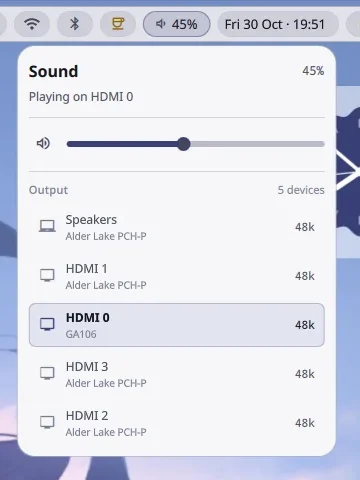
Where the audio is going, what every application is doing to it, what is playing, and the words — in the original script and in a romanisation under it. Plus the one thing no other bar will tell you: when a player has taken the card directly over ALSA, so the numbers you are reading are the real ones and not PipeWire's guess.

The media panel: album art, transport controls, a level meter and the signal chain — output device, bit depth and sample rate

The signal chain gets a strip of its own. It is the most specific thing this panel knows.

Synced lyrics

Time-synced lyrics that follow playback — click any line to seek to it. Two sources, because the first one's catalogue thins out badly outside Western releases.

Romaji, Revised Romanisation and pinyin are computed offline and stacked under the original, because singing along needs both at once.

Bit-perfect aware

When a player holds the card directly over ALSA, a badge shows the true bit depth and sample rate — and the visualiser switches to an ambient wave, because PipeWire genuinely cannot see that stream.

The same check is what warns the screen recorder that system audio would record silence.

The DAC panel left6.2

The eight-band parametric equaliser and the Moondrop DAC controls are gone. That work moved to Hub Moon — a whole application for the device, going further and faster than a panel inside a desktop shell could.

It was also the largest file in the project, in service of one manufacturer's USB DACs. Most people running a Wayland shell will never plug one in. The installer offers to fetch Hub Moon for you if you are one of the people who will.

Keyboard

Every bind, named.

Bindings carry a description, so the built-in cheat sheet reads "Wallpaper picker" instead of a shell command — and you can click any one of them to change it.

SUPER+Space
Launcher — apps, commands, maths, files, clipboard
SUPER+S
Control center
SUPER+D
Dashboard
SUPER+W
Mission control
SUPER+V
Clipboard history
SUPER+R
Screen recording — press again to stop
SUPER+SHIFT+O
Recognise text in a region, to the clipboard
SUPER+SHIFT+G
Game mode — strips the effects, then restores every one
SUPER+SHIFT+D
Switch light and dark
SUPER+SHIFT+W
Wallpaper picker — full-bleed preview, type to search
SUPER+N
Next wallpaper, with a transition
SUPER+ESC
Power menu

What's next

Seventeen releases,
five weeks.

Each one has a subject. 6.2 was the wallpaper, 6.3 was the bar, and 6.4 is the part of the screen this shell used to do nothing with at all — the desktop between them, with widgets placed around what is in your wallpaper rather than on top of it. It also brought the focused window's own menu bar into the bar, which the roadmap had listed as impossible here.

Install

One line.

Clones the repository, installs every dependency, and lays down the configuration.

$ bash <(curl -fsSL https://raw.githubusercontent.com/MiyukiVigil/sea-shell/main/bootstrap.sh)

Use bash <(…) rather than a pipe — a pipe takes over standard input, which stops sudo being able to prompt you.

Compositor
Hyprland 0.55 or newer, Lua configuration
Toolkit
Quickshell 0.3 · Qt 6
Packages
Arch-based — Arch, CachyOS, EndeavourOS, Manjaro, Artix
Configuration
Any distribution, with --no-deps
Notification daemon
Built in — do not run mako or dunst alongside
Also replaces
waybar · rofi · wofi · swaync
Installed to
~/.config/quickshell/sea-shell
Existing files
Backed up, and restored by --uninstall
Optional
Offers to fetch Hub Moon for USB DAC control — asked, never assumed, and skipped entirely on a piped install
Licence
MIT — fork it, package it, lift a widget out of it